
Overview
Most Word documents are small enough to be submitted to the Learning Space without any changes. If your file is unusually large, the most common cause is embedded images. Reducing the size of these images can often significantly reduce the overall file size.
 Important:
- Before making any changes, save a backup copy of your original Word file. This allows you to return to the original version if you are unhappy with the results.
- Be cautious if using online file compression tools. Some websites may be unsafe or collect your files and data. Wherever possible, use trusted software provided by your institution or downloaded from reputable sources.
1. Insert images (don't Copy & Paste them)
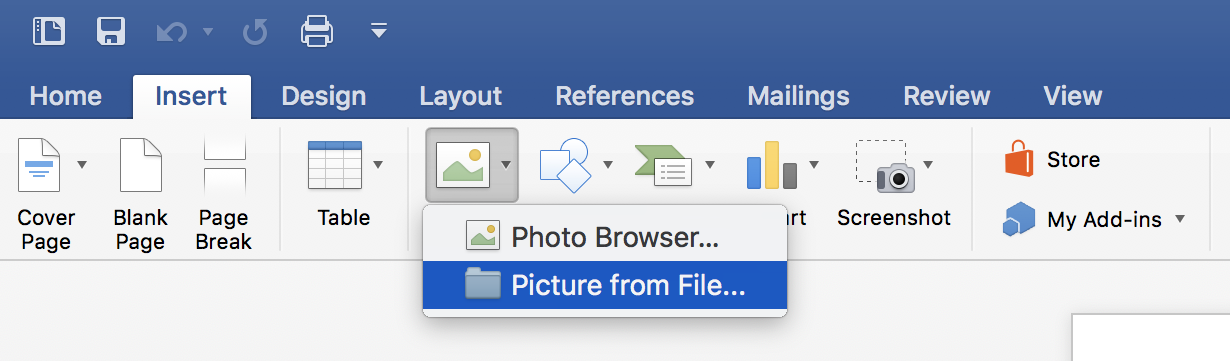
When adding images in Word, use the Insert > Pictures option rather than copying and pasting. This can reduce the file size significantly.
2. Compress images within Word
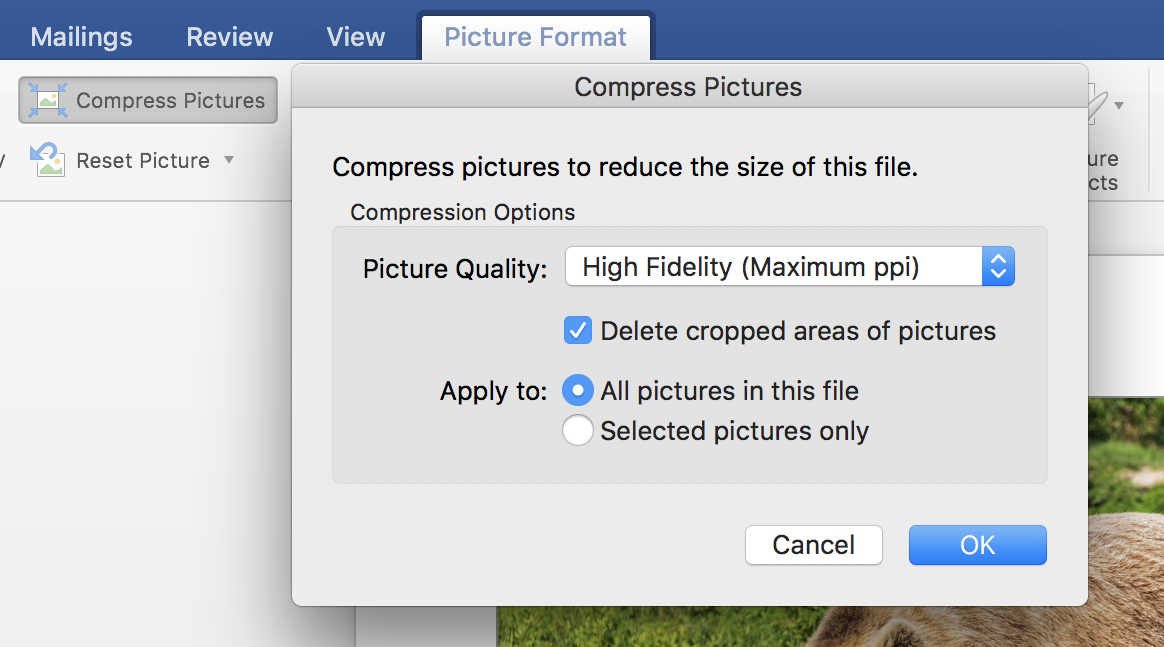
You can compress images further using built-in Word features. You can select how much you want to compress the file. Heavily compressed images result in reduced image quality.
3. Remove Editing Information
Word stores information about image edits, such as cropping and formatting, which can increase file size. You can reduce the size of a document by using Word's picture compression tools and removing unnecessary image editing data.
4. Use the latest version of Word
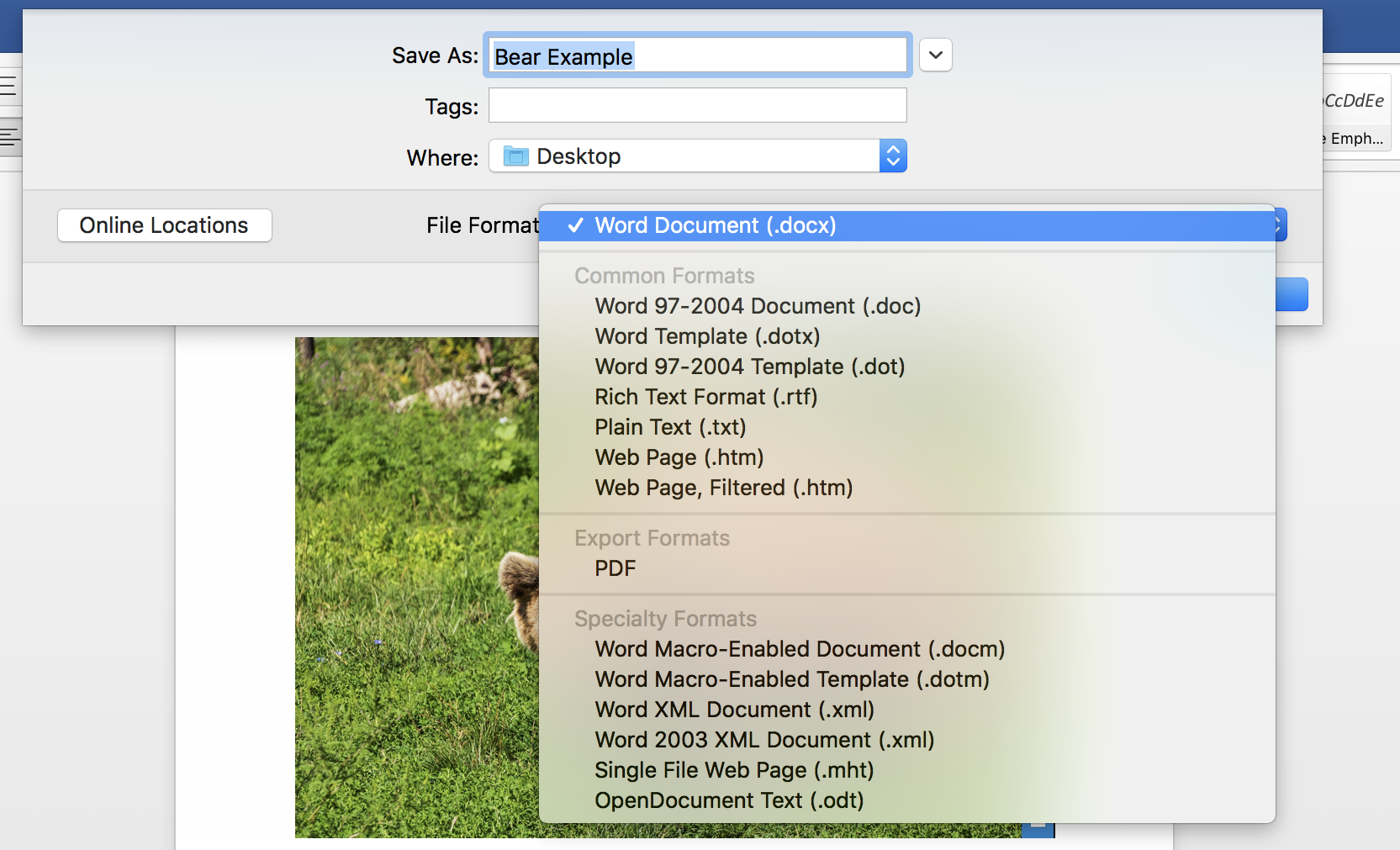
Ensure that you save Word documents in the .docx format unless instructed otherwise. This format is supported by most devices and applications, and it is more efficient at compressing content, resulting in smaller file sizes.
 Important: If you are uploading a document to Learning Space, we recommend using the original .docx file. While a PDF may be smaller, a .docx file is typically more accessible because users can take advantage of Word's built-in accessibility features, such as text resizing, read aloud, and compatibility with assistive technologies. This will provide a better experience for a wider range of users.
 Further Support
For further support on Learning Space, or to report any issues with this guide, please get in touch with the Digital Learning Team via dlsupport@falmouth.ac.uk. Alternatively, please refer to the numerous help guides found on our Knowledge Base.
View the Accessibility Statement for all of our support guides.