
Overview
You should not normally have any difficulty uploading PDF files to Learning Space, as they are typically well within the platform's file size limits. However, it is still good practice to follow the recommendations below to reduce file sizes where possible, helping documents download more quickly and use less storage.

Important:
- Before making any changes, save a backup copy of your original file. This allows you to return to the original version if you are unhappy with the results.
- Be cautious if using online file compression tools. Some websites may be unsafe or collect your files and data. Wherever possible, use trusted software provided by your institution or downloaded from reputable sources.
1. Save efficiently in Word
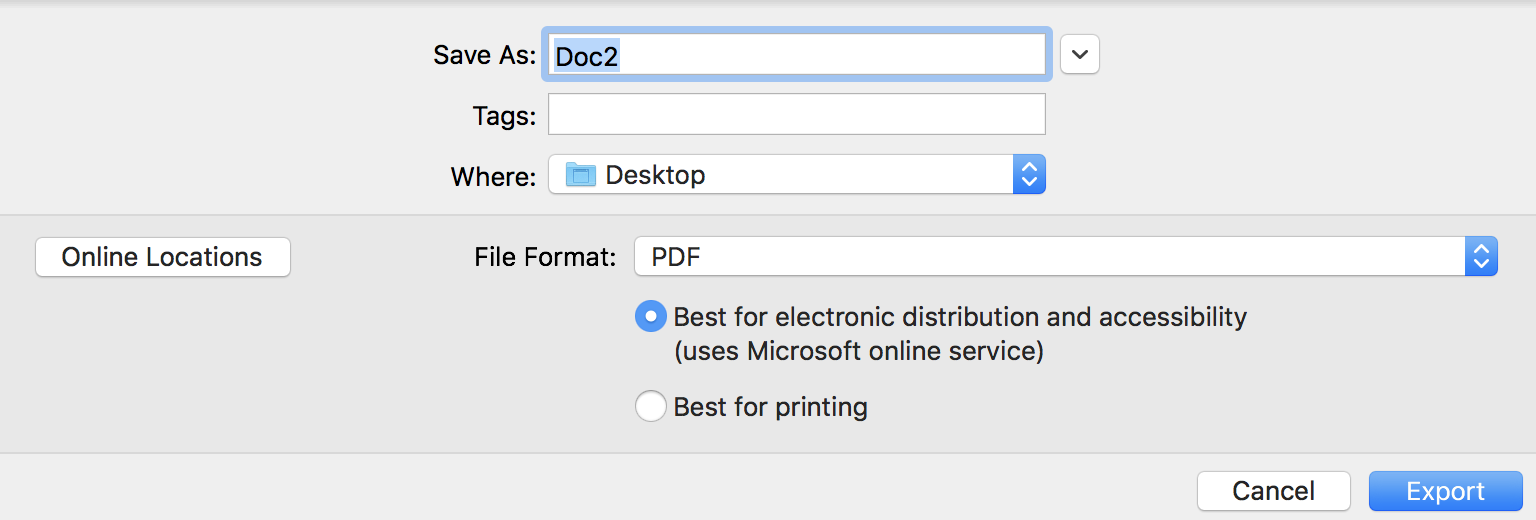
Saving a PDF using Best for electronic distribution and accessibility can often reduce the file size significantly. As this process may compress images or alter the appearance of some content, it is a good idea to review the PDF carefully before submitting it.
You can also compare the file size produced using Best for printing. This option typically creates a larger file but may preserve higher image quality and document fidelity.
 Important: If you are uploading a document to Learning Space, we recommend providing the original file, such as a Word (.docx) or PowerPoint (.pptx) file, where appropriate. While PDFs are often smaller, the original file allows users to take advantage of Microsoft Office accessibility features, such as text resizing, read aloud, and compatibility with assistive technologies. This can provide a more accessible and flexible experience for a wider range of users.
2. Use the preview function on your Mac

MacOS includes a built-in feature for reducing PDF file sizes. Open the PDF in Preview, select File > Export, then choose Reduce File Size from the Quartz Filter drop-down menu.
This can significantly reduce the size of the file, particularly for PDFs containing images. However, it may also reduce image quality, so check the resulting PDF to ensure that all content remains clear and readable before submitting it.

Link:
View the Apple Guidance On Compressing A PDF for further details on files sizes and compression.
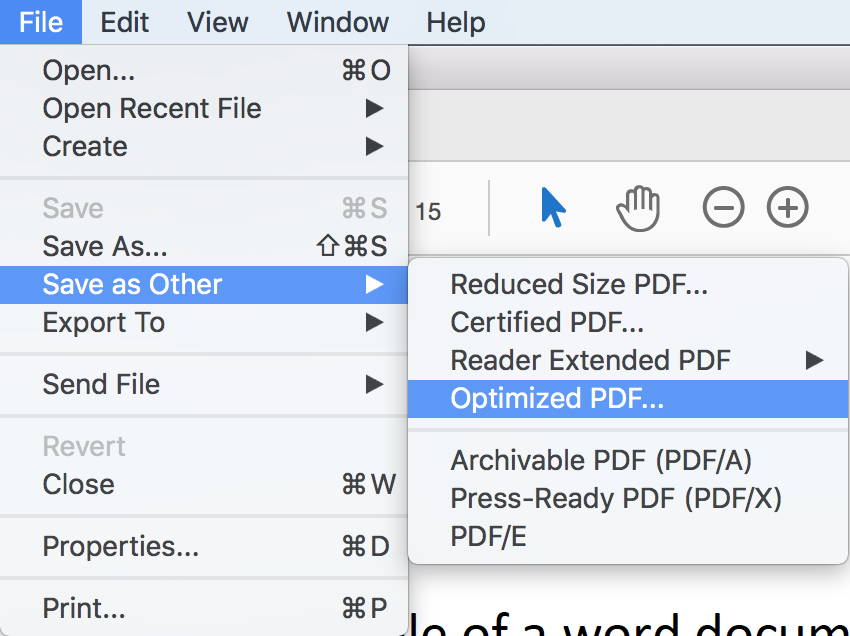
Adobe Acrobat DC (available for university staff) includes built-in tools for optimising PDF files and reducing file size. The standard optimisation settings are suitable for most documents, but more advanced options are available if you wish to control how images, fonts and other content are compressed. Check the link in the Useful Links section for more details.
Link:
View the Guidance on how to compress a PDF using Acrobat DC for further details on files sizes and compression.
 Further Support
For further support on Learning Space, or to report any issues with this guide, please get in touch with the Digital Learning Team via dlsupport@falmouth.ac.uk. Alternatively, please refer to the numerous help guides found on our Knowledge Base.
View the Accessibility Statement for all of our support guides.