
Overview
Similar to video files, audio files can end up becoming unnecessarily large. Compressing audio files helps reduce download times, uses less storage, and makes content more accessible for people with limited internet bandwidth or data allowances. Please note that these recommendations are designed for situations where the audio content itself is more important than the highest possible recording quality.
Contents
Editing audio with Adobe Audition
Tools
The university provides video editing software on most university machines. For the tips outlined in this guide we would recommend using Adobe Audition.
 Important:
- Before making any changes, save a backup copy of your original audio file. This allows you to return to the original version if you are unhappy with the results.
- Be cautious if using online file compression tools. Some websites may be unsafe or collect your files and data. Wherever possible, use trusted software provided by your institution or downloaded from reputable sources.
1. Reduce audio length
The easiest step is to ensure that you remove any unnecessary audio from the final version. Normally this can be achieved by trimming the beginning and end of the audio as well as removing any long pauses throughout. You might also want to consider rerecording parts of the audio that could be shortened.
2. Select the correct file type
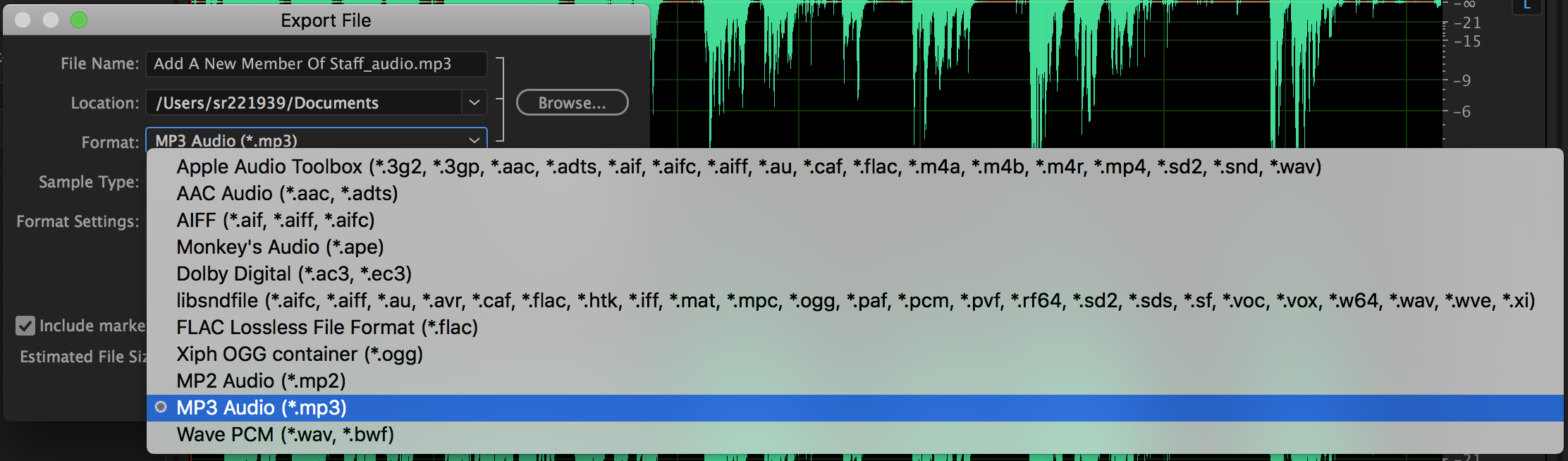
The file format you choose has the biggest impact on both file size and audio quality. MP3 is a good choice for creating smaller file sizes for coursework submissions. However the quality of audio can suffer. If preserving audio quality is important, consider using a file type such as FLAC. Avoid uncompressed formats such as WAV and AIFF as they create larger file sizes which can be difficult to upload and share. In Adobe Audition, you can choose the file format when exporting your audio.
3. Lower The sample and bit rate
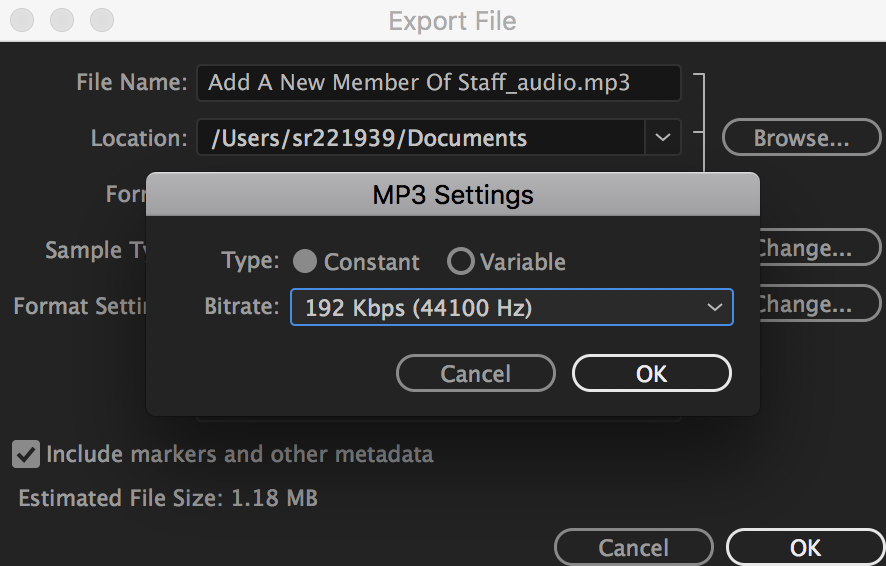
When you use Adobe Audition to create your file it is possible to lower the bitrate which will reduce the file size. This reduces the amount of data stored at each second in the track which will unfortunately compromise audio quality.
 Links: View the Supported File Formats In Adobe Audition guidance for more information.
 Further Support
For general queries about the Learning Space, students should first contact their module leader or personal tutor. For any other comments or issues within this guide, please contact the Digital Learning Team via dlsupport@falmouth.ac.uk. Alternatively, please refer to the numerous help guides found on our Knowledge Base.
View the Accessibility Statement for all of our support guides.