
Overview
This article explains what a workshop activity is and how to use it.
Contents
What is a Workshop?
The Workshop Activity is a peer assessment tool that students can use to evaluate each others work. The Workshop Activity can be identified by the pink icon shown below. 
Contributing to a Workshop
There are two stages to a Workshop Activity, the submission phase and the assessment phase.
In this example the workshop has been set up to provide students with an option to upload a file or use the online text option. Submission options will vary depending on how the workshop has been set up and many will be set up to allow one submission method only.
Submission Phase
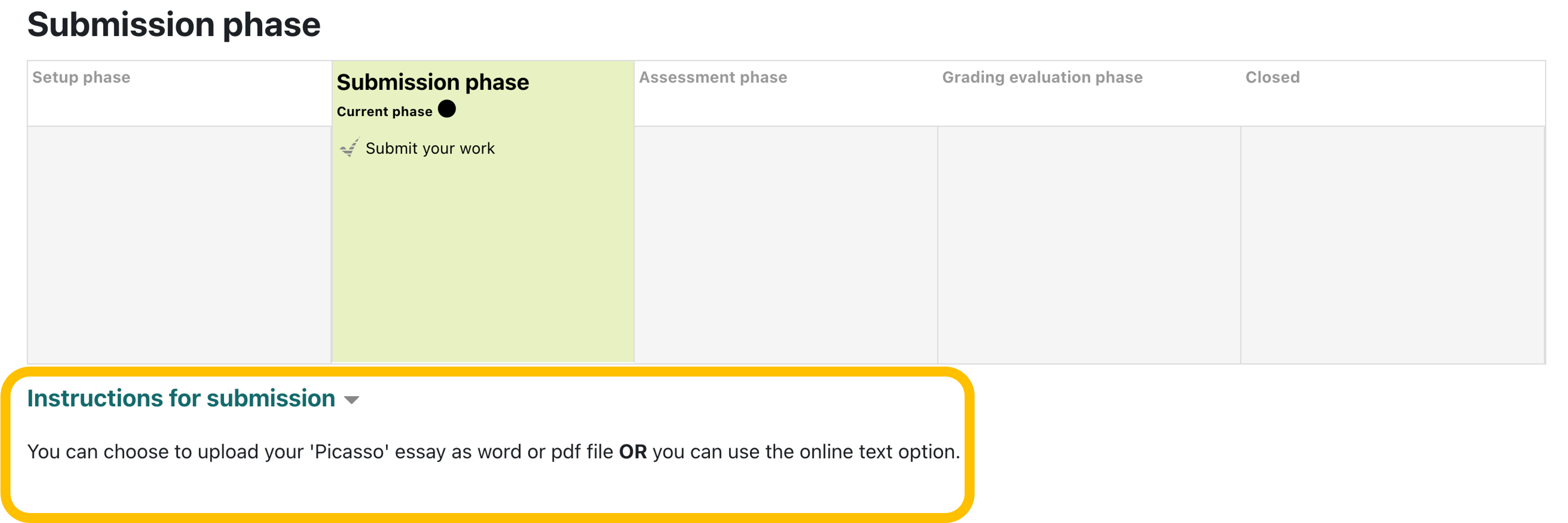
1. Click the Workshop icon to open the activity. The current phase will be highlighted in green.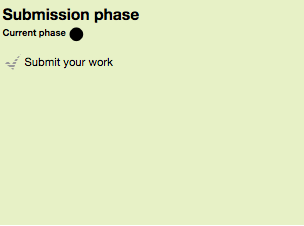
2. Read the instructions.
3. Click the 'Add submission' button and enter a title for your submission.
4. If your submission is via the online text option, paste the text from your document into the submission content box.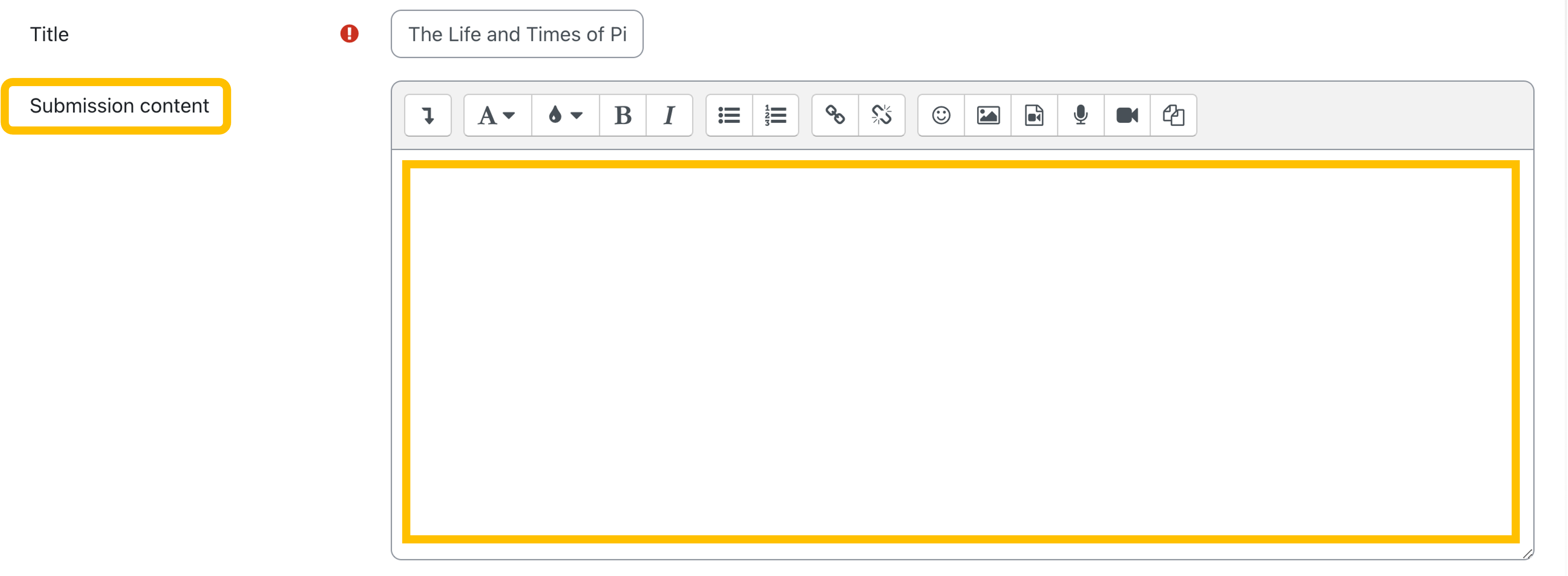
5. If your submission is via file upload, scroll to the attachment section and drag & drop your file into the attachment box. 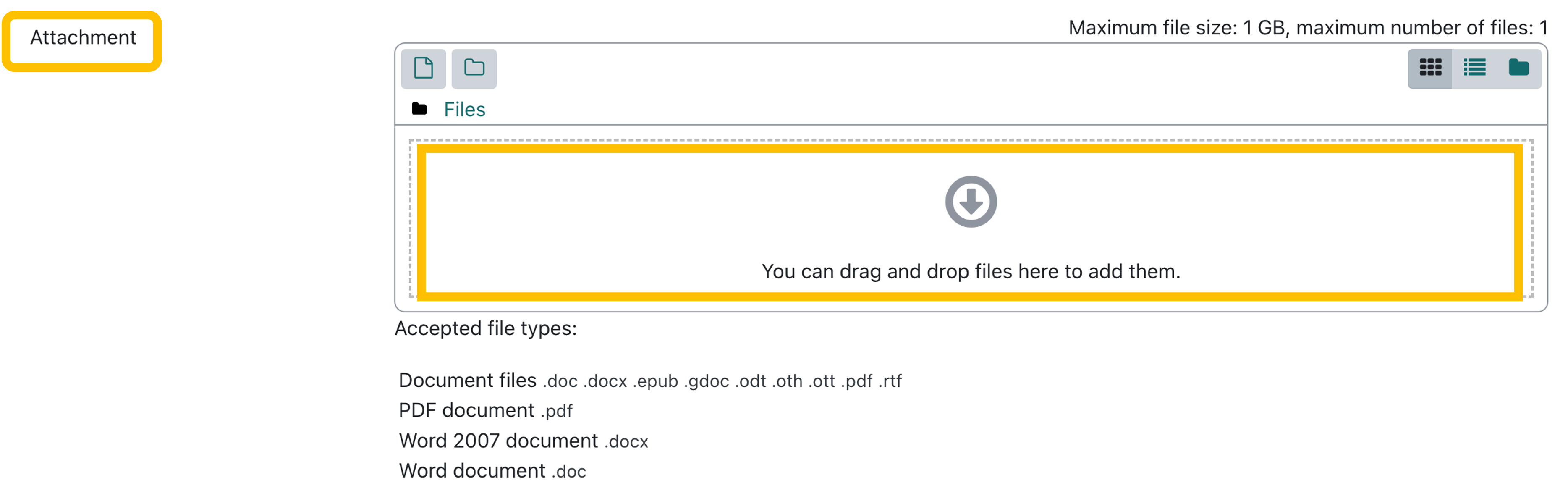
6. When you have added your text to the submission content area and/or attached your file, click 'Save changes' to complete your submission.
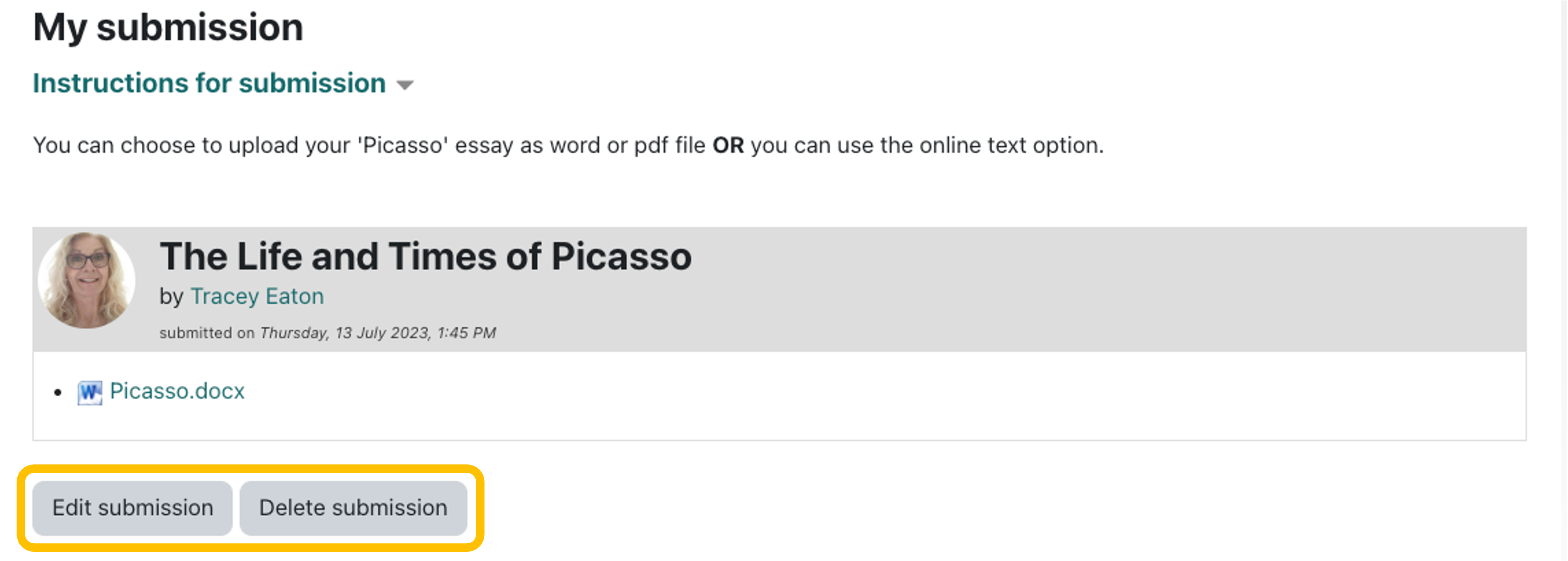
Your submitted file will be displayed with the time and date of the submission and button options to edit your submission (for online text) or delete submission (file upload).
Assessment Phase
The second phase in the Workshop Activity is the assessment phase.
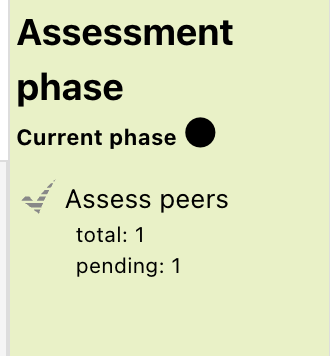
A member of staff will inform you once the submission phase has ended and the assessment phase has begun. In this stage you will be assigned one or more documents to assess.
- Click the workshop activity to open it.
- Read through the instructions for assessment guidance
- Beneath this you will see the assigned submissions to assess section, which will display the submission(s) that have been allocated to you.
- Click the Assess button.
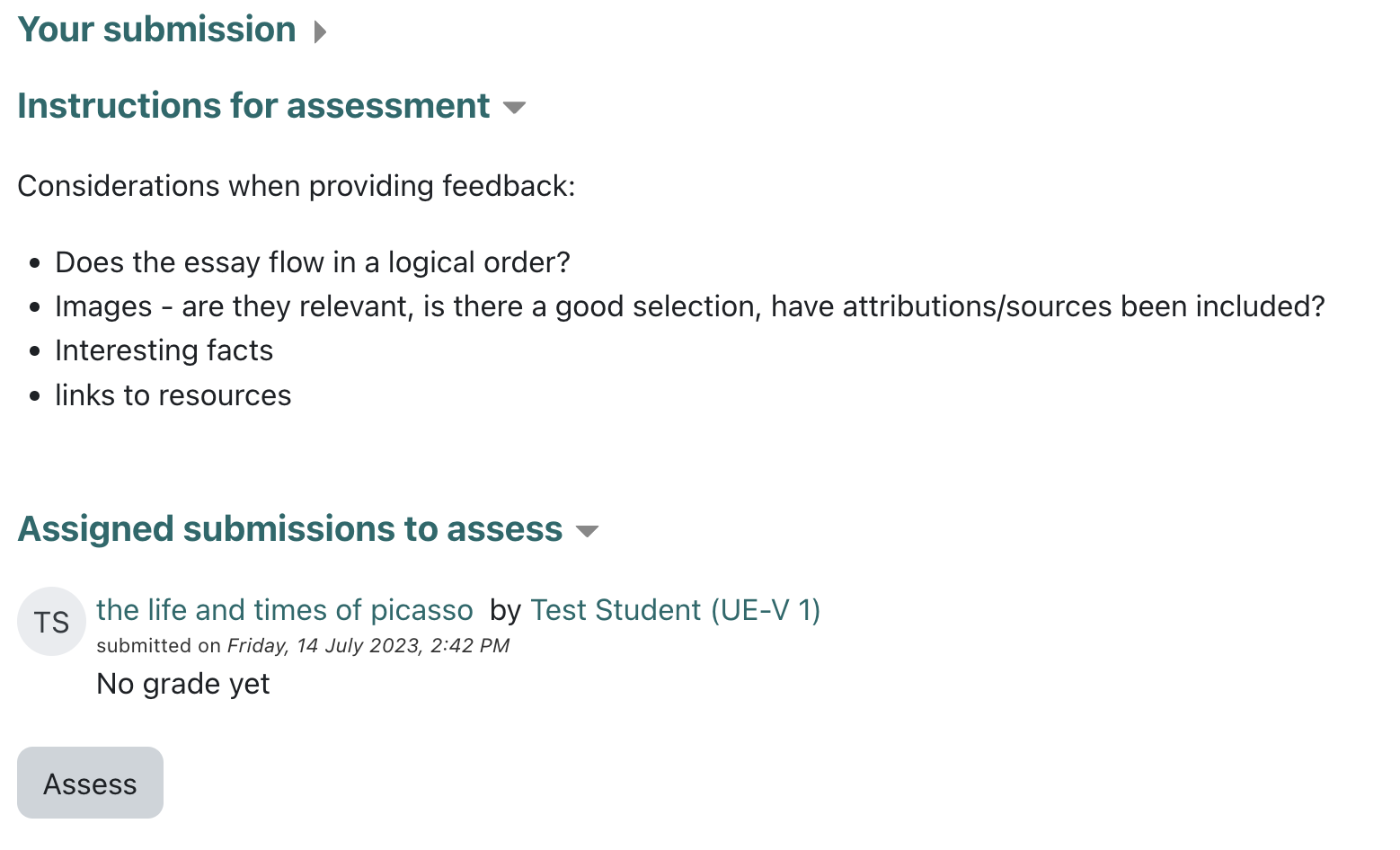
This will open the assessment page.
- At the top of the page, you will see the ‘online entry’ and/or ‘the submitted file’ that you need to assess.
- If a file has been submitted, click the title to download it.
- When you have read the submitted work, scroll down to the Assessment form and enter your feedback.
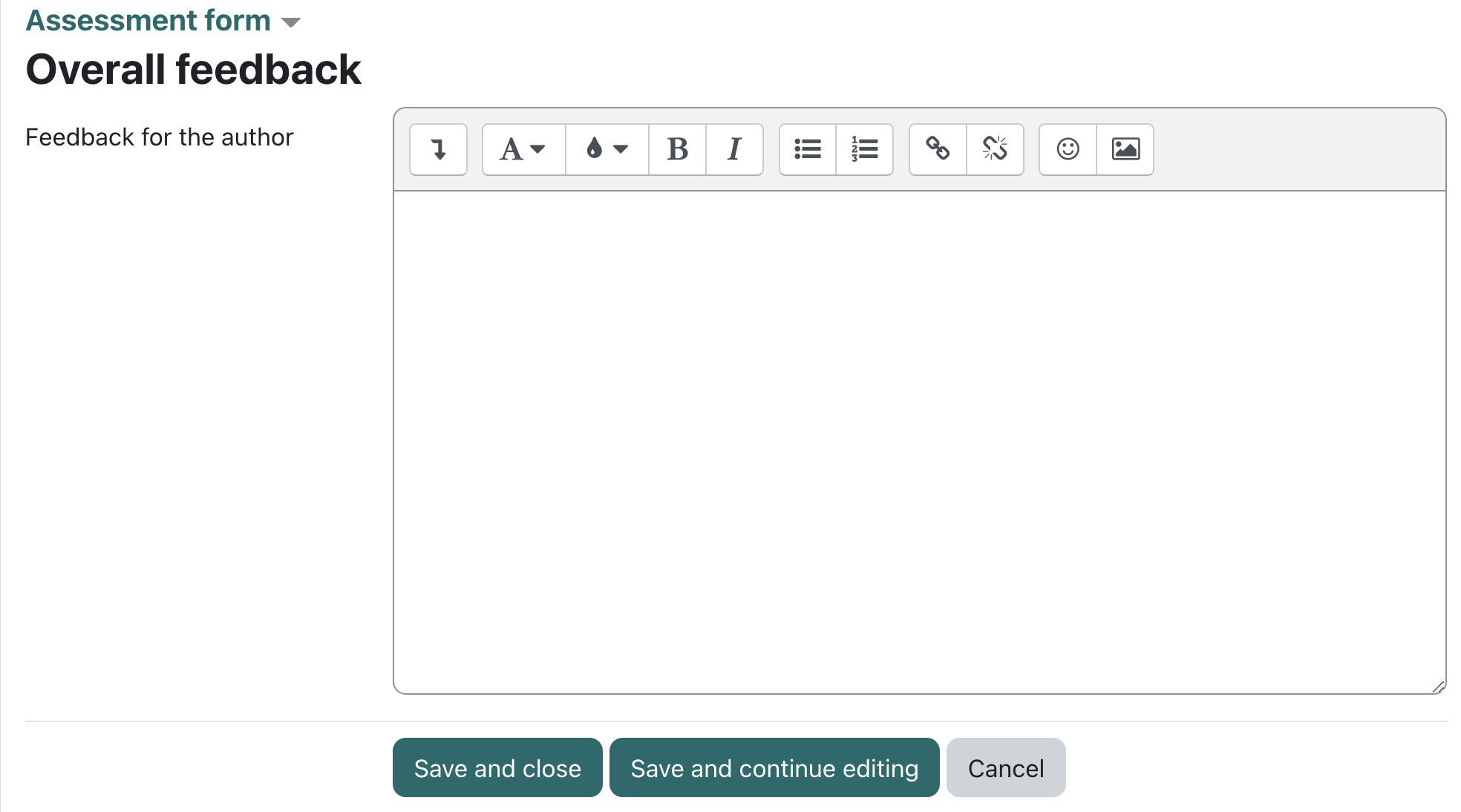
Click ‘Save and close’ button
Repeat the steps to assess any other work that has been allocated to you and wait for the assessment phase to end.
Accessing Feedback
Once the assessment phase has finished, staff will inform you when feedback is ready to access.
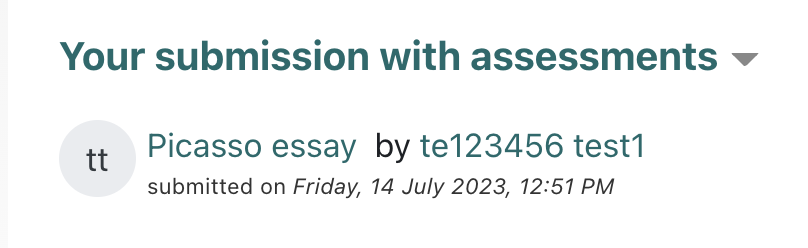
To do so, simply return the the Workshop Activity and click the title of your submission from the 'Your submission with assessments' section.
 Further Support
For general queries about the Learning Space, students should first contact their module leader or personal tutor. For any other comments or issues within this guide, please contact the Digital Learning Team via dlsupport@falmouth.ac.uk. Alternatively, please refer to the numerous help guides found on our Knowledge Base.
View the Accessibility Statement for all of our support guides.