
Overview
If a Mural board's visitor link has expired and your students request access to it, a ‘View only’ mural can be embedded into Falmouth Learn. This guidance outlines how a 'View only' mural can be embedded into an Announcement or Discussion.
 Note: You must be the owner of the mural to enable embedding. You will only need to enable embedding once per mural. If you are not the owner of the mural and you require assistance with contacting the mural’s owner, please contact Digital Learning for assistance via dlsupport@falmouth.ac.uk.
Contents
- A note on the permissions of an embedded mural
- How to generate a mural embed code
- How to embed a mural in an Announcement or Discussion in Falmouth Learn
- Further Support
A note on the permissions of an embedded mural
Based on the settings outlined in the How to generate a mural embed code section of this guide, the embedded mural will be:
- ‘View only’,
- only visible to students within Learn, not within mural directly, and
- only navigable by panning or zooming.
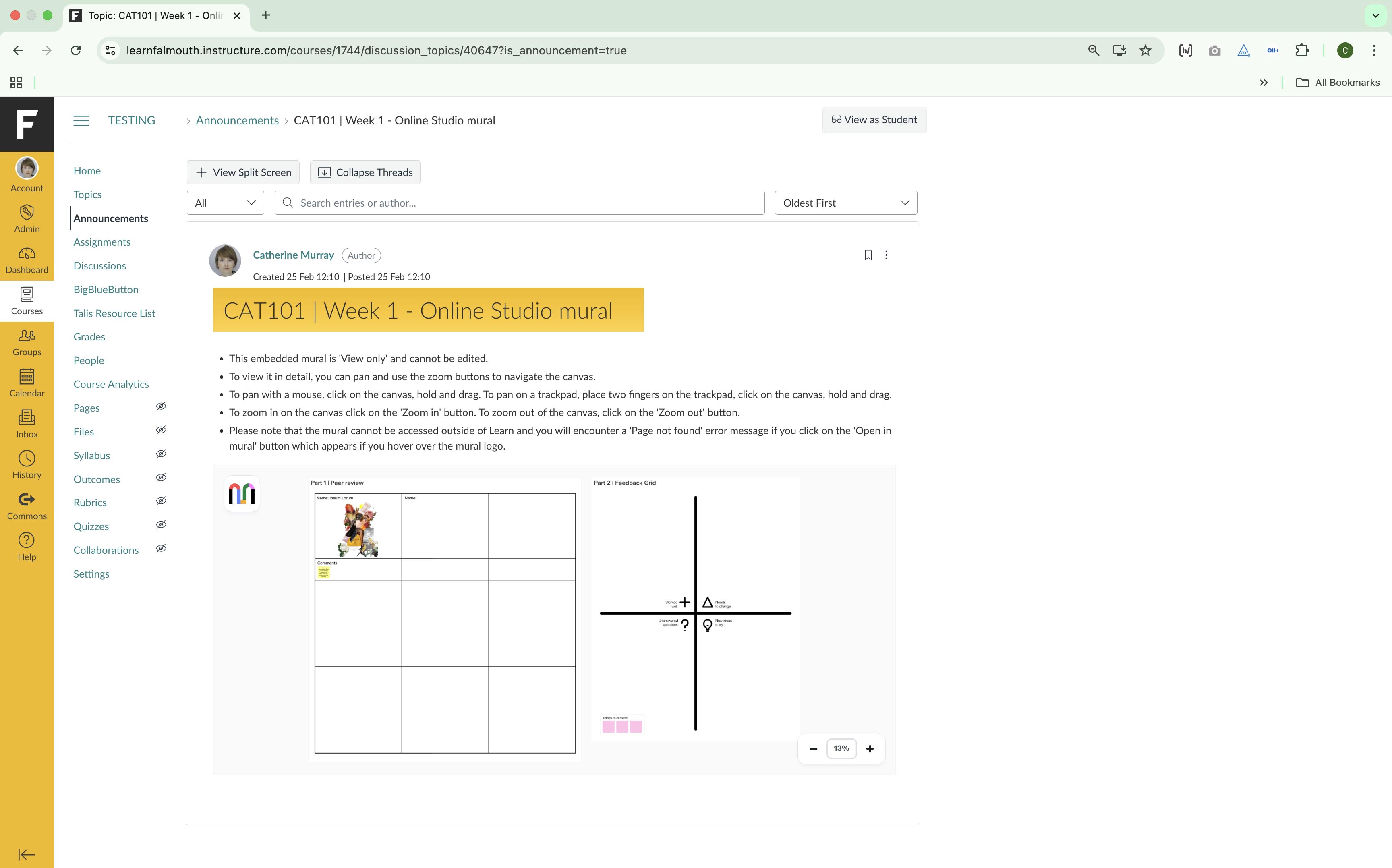
If a student clicks on the 'Open in mural' button which appears when hovering over the mural logo,

a 'Page not found' error message will appear denying them visitor access to the mural outside of Learn.
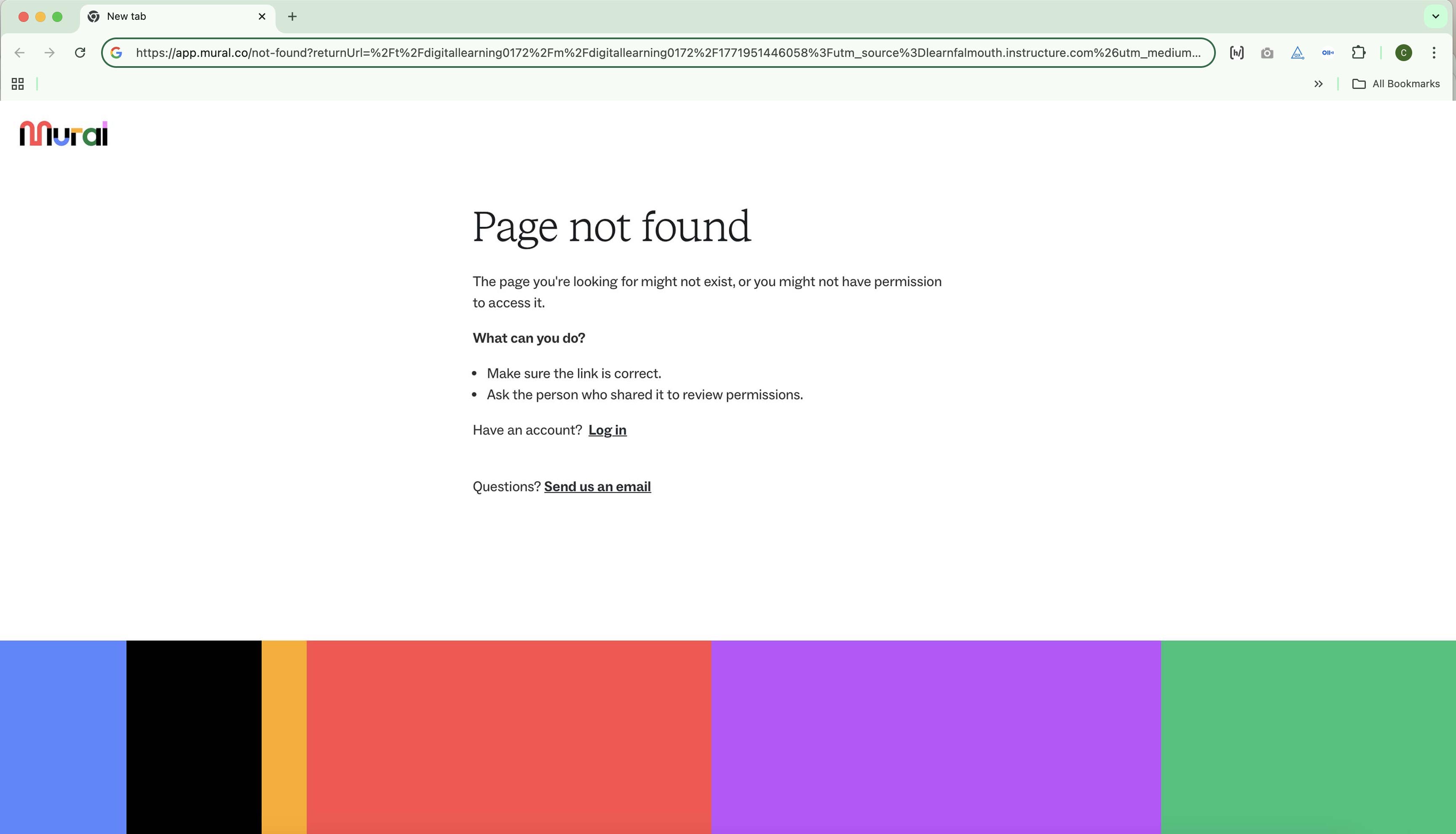
Please note that Course Team staff who are members of the Workspace, where the mural is located, will be able to access the embedded mural via the 'Open in mural' button.
How to generate a mural embed code
Follow the steps below to generate a mural embed code.
In the relevant Workspace in Mural, locate the mural that you would like to embed. Before generating the embed code, please ensure that you are the owner of the mural.
Note: If you are unsure of how to check the ownership of a mural, please refer to the Mural Support guidance on how to Identify mural owners.
With ownership of the mural confirmed, click on the ‘Share’ button in the top right-hand corner of the screen.
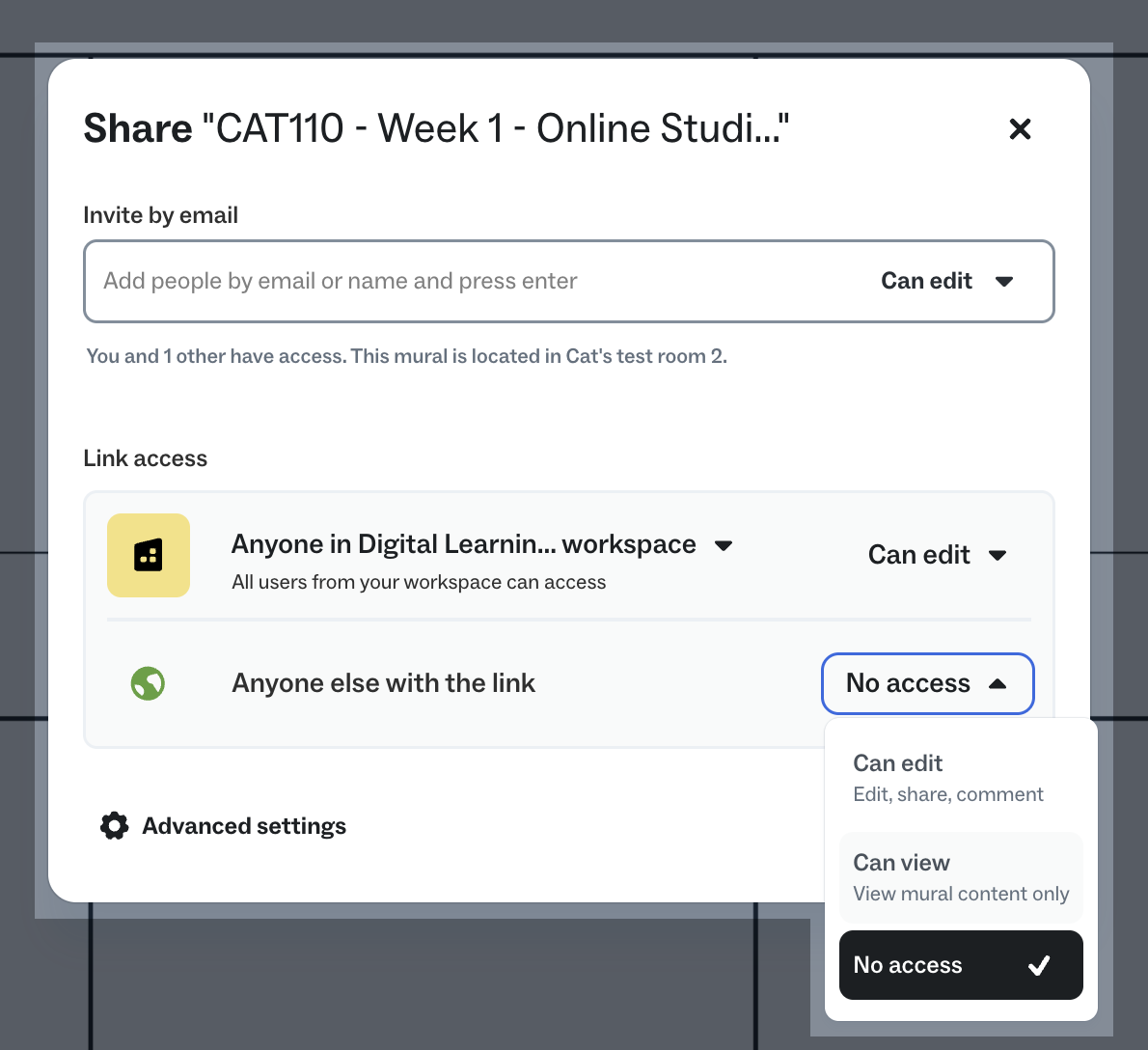
The 'Share’ dialog box will appear. From the 'Share' dialog, navigate to ‘Link Access’. For the option, ‘Anyone else with the link’ set the link access to ‘No access’.
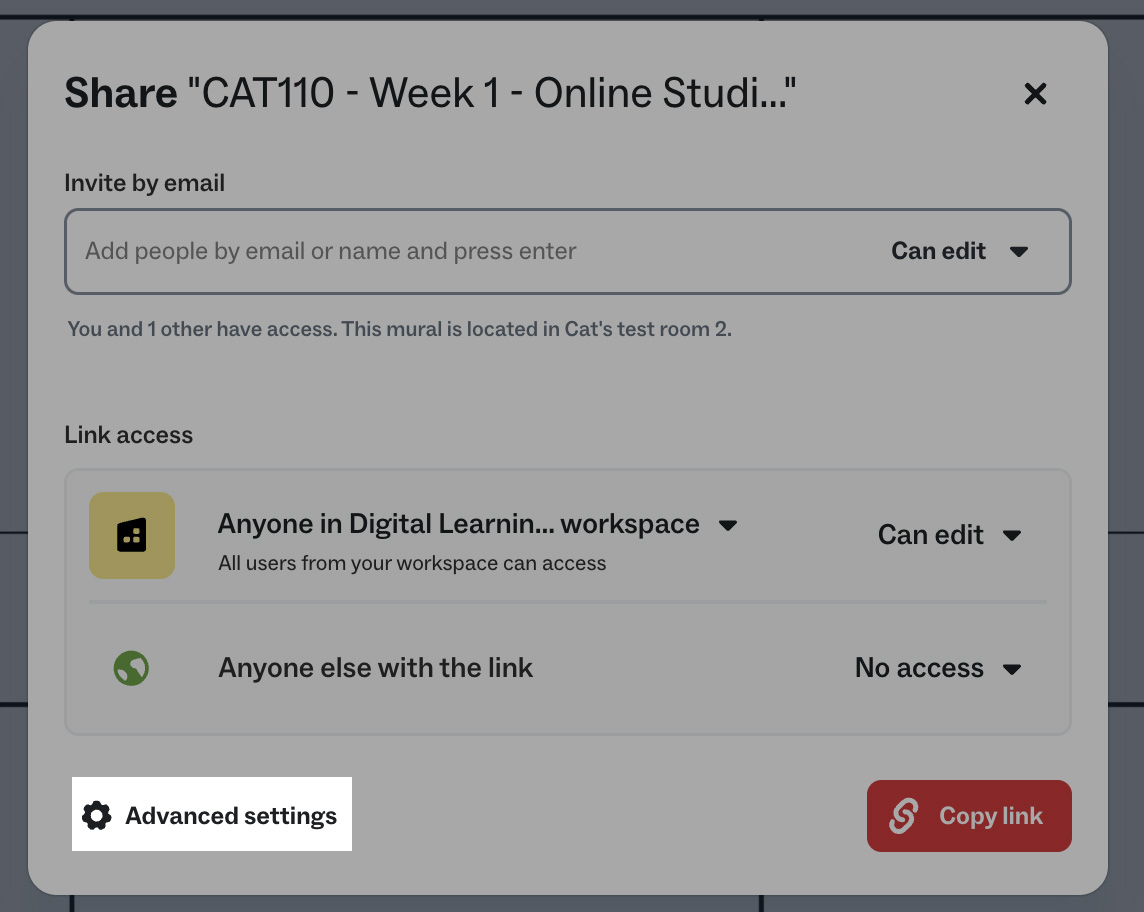
Click on the ‘Advanced settings’ link at the bottom-left of the 'Share' dialog.
The ‘Advanced settings’ panel will appear. Click on the ‘Embed’ tab.
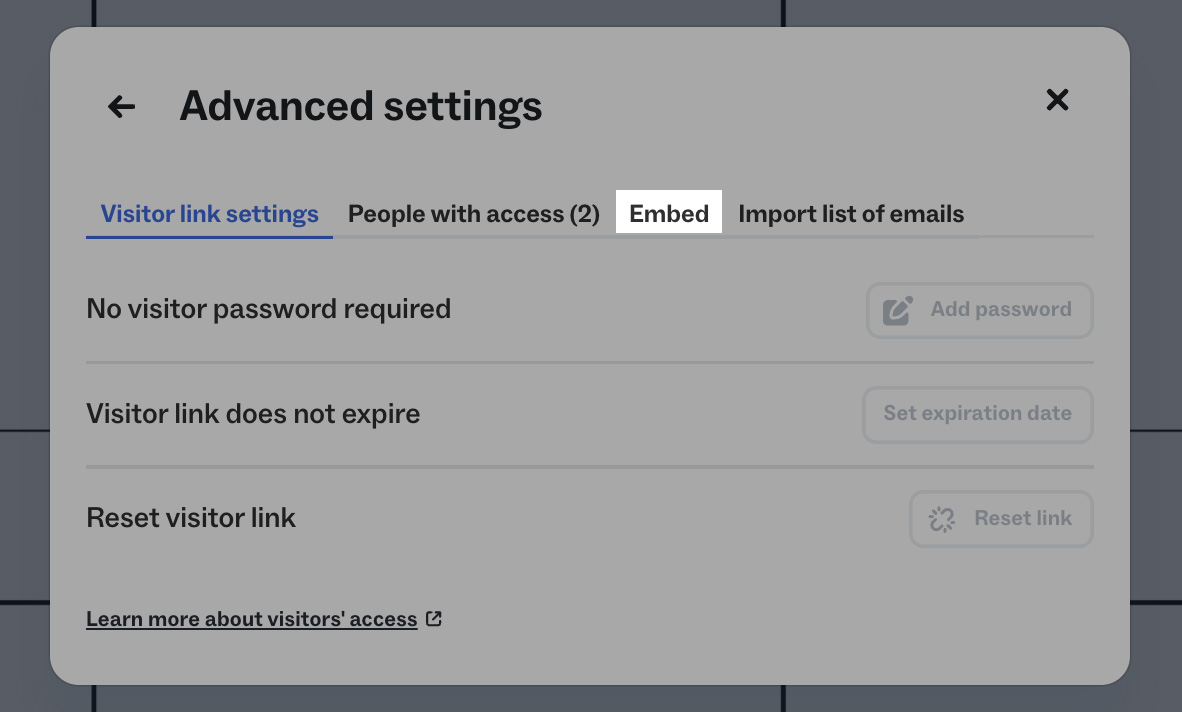
Embedding is disabled by default. To enable this feature, click on the ‘Enable embedding’ button.
Note: The ‘Embedding is disabled’ message only appears during the first time that the embedding feature is enabled. If you do not see this step, under the 'Embed' tab, you will be presented with the embed code and ‘Copy embed code’ button.

From the 'Embed' tab, click on the ‘Copy embed code’ button to copy the mural’s embed code to your device’s clipboard.

The embed code is now ready to be pasted into an Announcement or Discussion.
How to embed a mural in an Announcement or Discussion in Falmouth Learn
With the embed code copied to your device's clipboard, go the relevant module in Learn.
If you are creating an announcement, click on the ‘+ Add Announcement’ button or to create a discussion, click on the ‘+ Add Discussion’ button.
Assign the new announcement or discussion a suitable title.
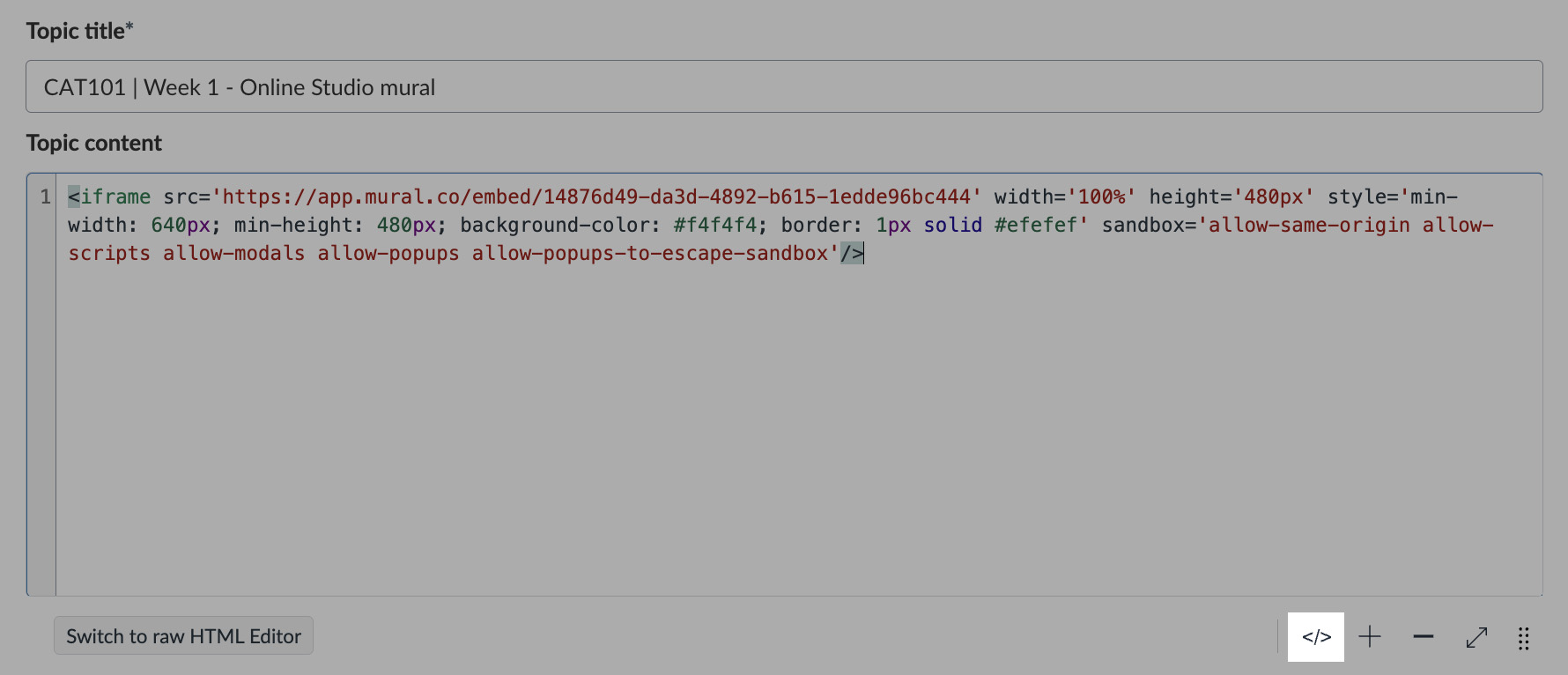
In the Rich Content Editor (RCE) that appears when creating a new announcement or discussion, click on the HTML Editor button (</> icon) located at the bottom-right of the editor.

This will switch you into to the editor's code view. Paste the mural embed code (cmd + v for Mac or ctrl + v for Windows) into the Rich Content Editor, as below.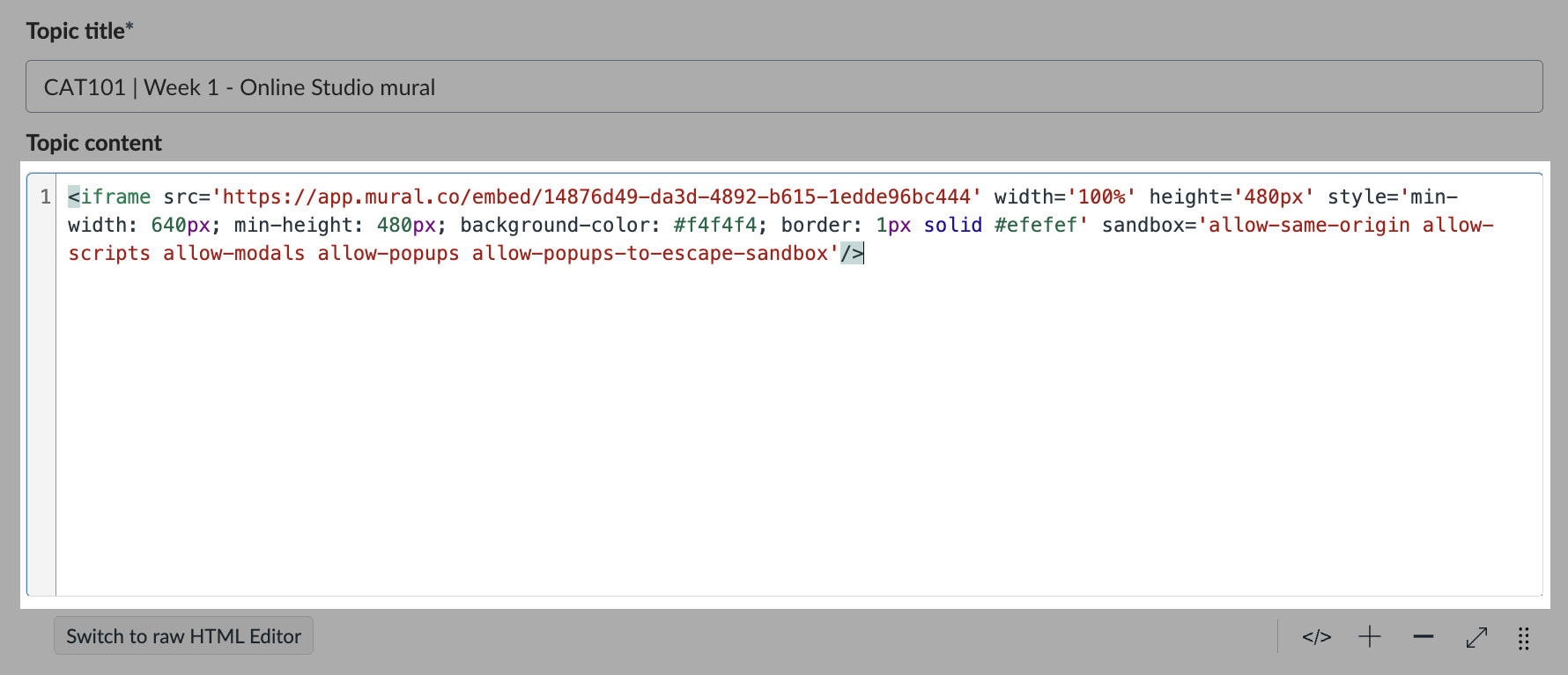
Click on the HTML Editor button (</> icon) again to switch back to the Rich Content Editor view.
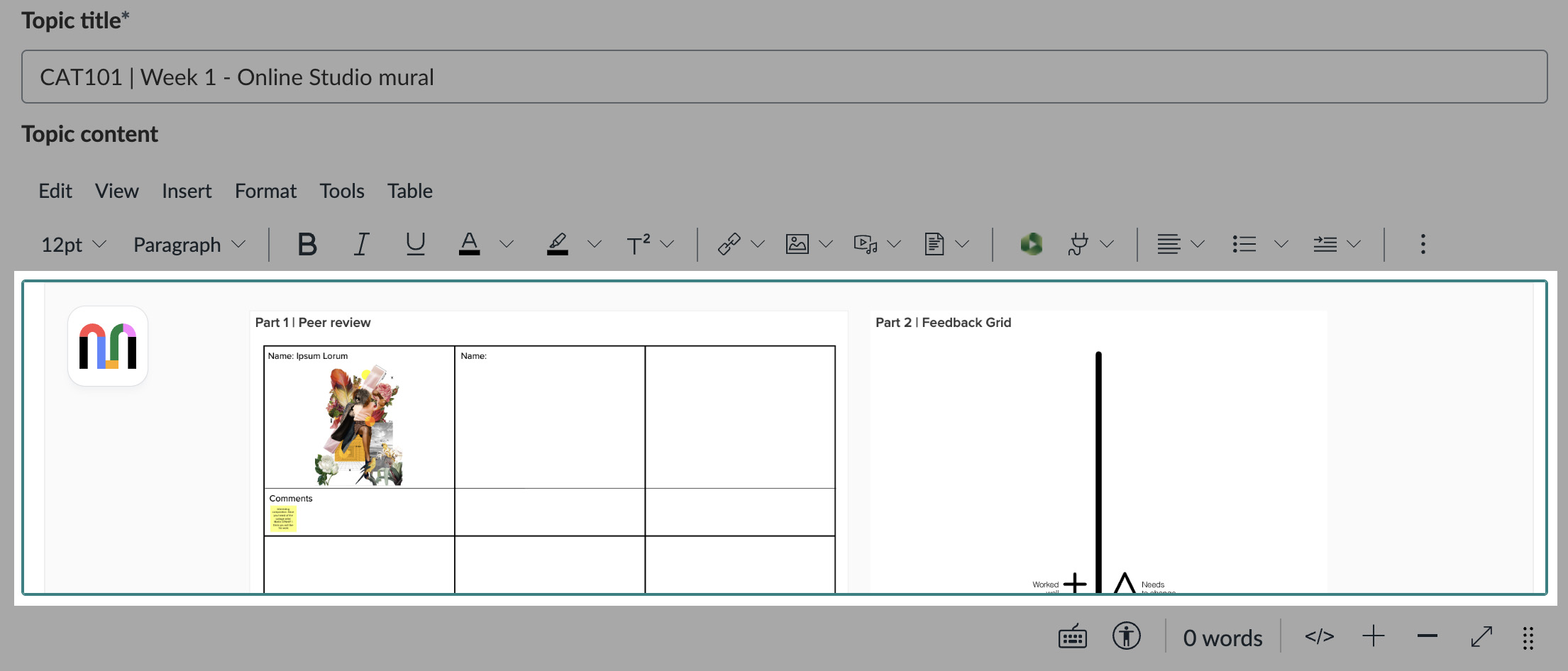
The mural will be embedded in the Announcement or Discussion.
Digital Learning advise that when embedding a mural in this way, some narrative explaining how to use the embedded mural is included for students’ benefit. Some example text is provided below:
Using this mural
- This embedded mural is 'View only' and cannot be edited.
- To view it in detail, you can pan and use the zoom buttons to navigate the canvas.
- To pan with a mouse, click on the canvas, hold and drag. To pan on a trackpad, place two fingers on the trackpad, click on the canvas, hold and drag.
- To zoom in on the canvas click on the 'Zoom in' button. To zoom out of the canvas, click on the 'Zoom out' button.
- Please note that the mural cannot be accessed outside of Falmouth Learn and you will encounter a 'Page not found' error message if you click on the 'Open in mural' button which appears if you hover over the mural logo.
After the narrative text has been inserted, click on the ‘Publish’ button (if you are creating an announcement) or the ‘Save’ button (if you are creating a discussion). The 'View only' mural will be embedded in Learn and Announcement or Discussion can be shared with your students.
For further guidance on creating Announcements or Discussions please view the following Canvas Instructure support guides:
How do I add an announcement in a course?
How do I create a discussion as an instructor?
 Further support
For further support with Mural, or to report any issues with this guide, please get in touch with the Digital Learning Team via dlsupport@falmouth.ac.uk. Alternatively, please refer to the numerous help guides found on our Knowledge Base.
View the Accessibility Statement for all of our support guides.