
When using Padlet, the security of data and content is a top priority and as such default board settings now only allow access to Falmouth students and staff. It is however also recognised that on occasion staff may need to provide external users with access to their boards. The guidance below shows staff how to achieve this using the most secure method available which is to add external users as collaborators. The benefits of this are that the notification invite will only work for the intended user, their username will be visible in the collaborators section of the padlet board and they can be removed from the board when access is no longer required.
Note: Staff retain the ability to change board settings to allow visitor access with/without users being required to login. We do however strongly advise against this. It's not a secure access method, could be shared and allow access to anyone and the possibility of data breaches occurring as a result are far higher.
Contents
- Padlet - External user access
- Adding an external user as a collaborator
- Removing an external user
- External collaborator invite journey
Padlet - External user access
This video shows you how to add an external user to your Padlet board, the invite notification they receive and the steps they need to follow
Adding an external user as a collaborator
- Open your Padlet board
- Click the Share button
- Enter the users email address into the ‘Add a collaborator’ field
- Click the Invite link to send
Note: The default role for a collaborator is ‘Read’. This can be changed once the invite has been sent.
- To change the collaborator role from ‘Read’, click the drop-down menu and select the role you want to apply
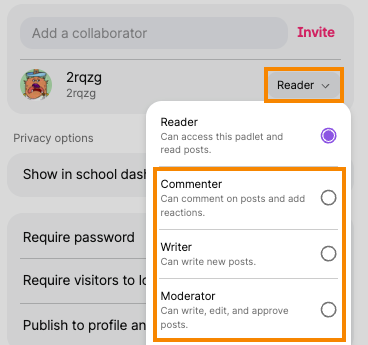
If you change the collaborator’s role (e.g. from Reader to Writer), you’ll initially see an option to resend the invite but there’s no need to do that as the newly selected role will automatically be applied when the external visitor accesses the Padlet board.
Removing an external user
External users that have been added as collaborators remain visible in the ‘Share’ tab of Padlet boards and should be removed from the board when access is no longer required.
- Click the Share tab
- Locate the user
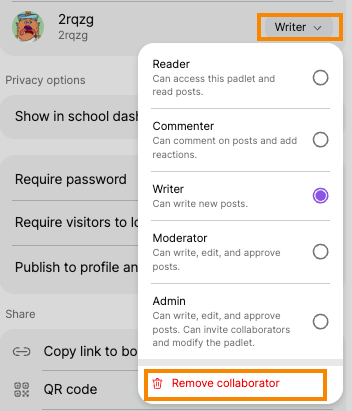
- Click into the role drop-down menu
- Scroll down and select ‘Remove collaborator’
External collaborator invite journey
When you add an external user as a collaborator to your board, they will receive an email notification with a link to 'sign up and accept invite' and will then need to follow on screen instructions to set up a free account to access your padlet board.
If you'd like to see the steps that need to be followed or think the user would benefit from support with this, you can refer to and/or share our Padlet - External collaborator access guide
 Further support
For further support with Padlet, or to report any issues with this guide, please get in touch with the Digital Learning Team via dlsupport@falmouth.ac.uk. Alternatively, please refer to the numerous help guides found on our Knowledge Base.
View the Accessibility Statement for all of our support guides.